From a file to your favourite project.
A digital download is a collection of files. Save them on your device and, depending on the product, print them or use them in design software.
Where are my purchased files?
First check your order confirmation and the download instructions for your FernivoDesigns shop purchase. Digital products are not shipped by post. Each product page lists its file formats and included contents.
If download information is missing or a file does not work, email contact@quickly-challenges.com with your order number and product name. Do not send passwords or payment details.
Which file do I need?
- ZIP – the package
- Extract the ZIP into its own folder first. Inside are the included files and, where applicable, instructions. On a computer the command is often called “Extract all” or “Unzip”.
- PDF – printable pages
- Open the file in a PDF reader to see the finished page layouts. The individual listing states whether fillable form fields are included.
- PNG – individual artwork
- Add the file as an image in your design application. PNG can support transparency; the listing says whether our file is transparent. A checkerboard in your application may indicate transparency.
- JPG – images & digital papers
- JPG files have opaque backgrounds. Use them in compatible image or layout software. Only patterns explicitly labelled seamless are designed for direct repetition.
Included formats vary by set. Renaming a PNG does not turn it into an SVG cutting file.
Fill in a recipe book on your device
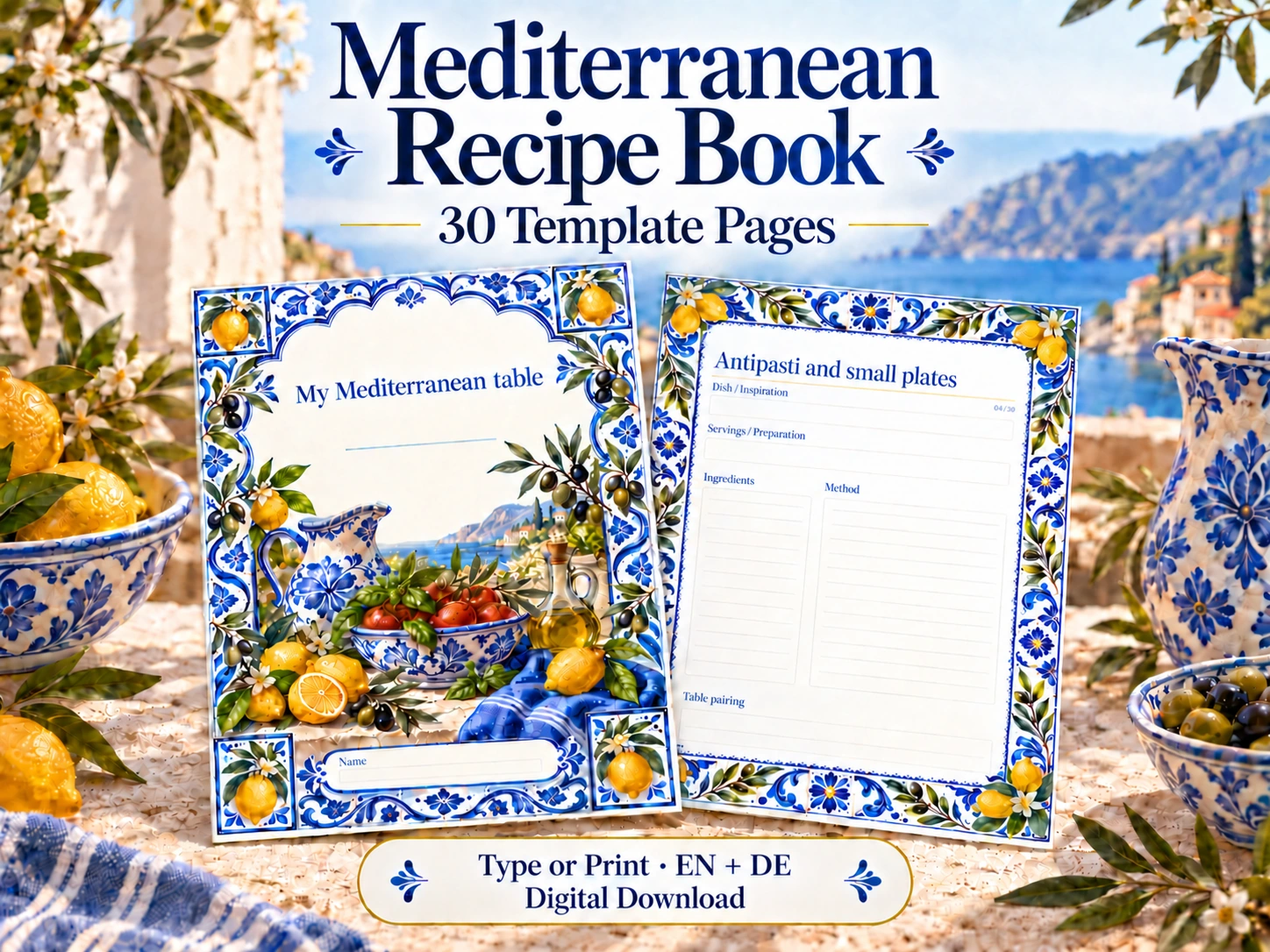
The recipe book bundles include two types of PDF: Fillable with form fields, and Print for printing. After extracting the files, choose your language and paper size.
- Open the Fillable file. Use a PDF reader with form support. A basic file preview may not allow typing.
- Save your own copy. Keep the blank original so you can reuse it later.
- Fill in the fields. Click a field and type. Multiline fields allow line breaks but do not expand. Keep your text within the visible area.
- Save, close and reopen. Check that your saved entries are still present and fully visible before filling more pages or printing.
Cannot type? Check that the filename includes Fillable . If your PDF application does not support form fields, open it in a compatible reader. Our printable reading journals do not include these input fields.
Prepare your printout
- Choose the correct paper version. If both are included, choose A4 for A4 paper or US Letter for Letter paper.
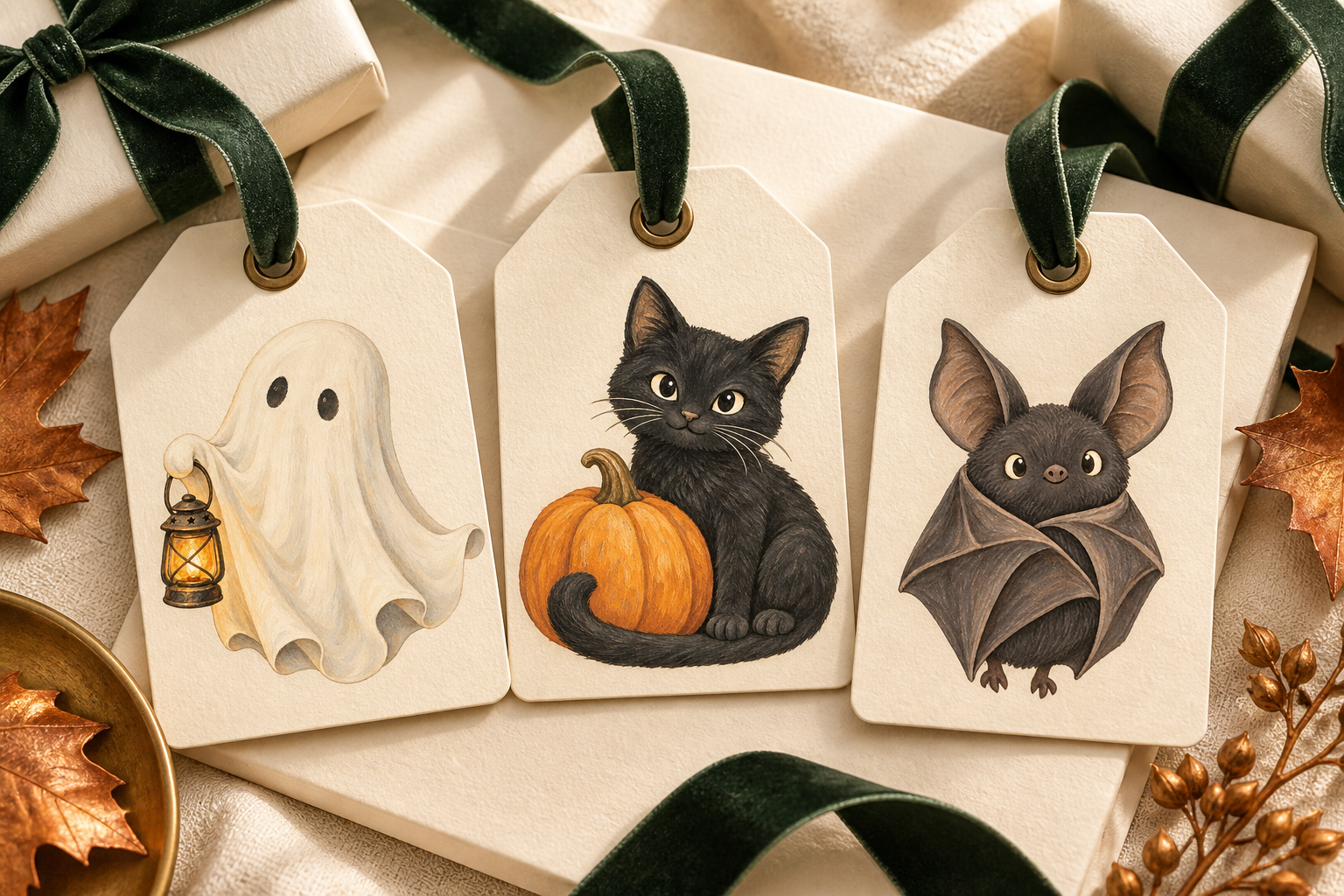
- Follow the product instructions. For templates with fixed dimensions, such as our free tags, choose “Actual size” or 100%. Check the print preview for clipped edges.
- Try one page first. Check size, legibility and colours before printing the whole set. Screen colours and print results may differ.
- Choose paper for your project. Check which paper weights your printer supports. Not every template is designed for borderless printing.
No printer of your own? A print shop can print your PDFs to your requirements. Agree on price and format first; printing is not included in the product price.
What may I do with the designs?
The individual product licence applies. Personal use, commercial use, sharing and digital resale are different permissions. Read the usage terms on the product page in our shop before buying. The free mini set is for personal projects and gifts.
Something not working?
Email contact@quickly-challenges.com with your order number, set name, filename and a description of the issue. Do not share passwords or payment information. For general questions, find our contact details here.